

Cluttered desks build up slowly. One charging lead, one monitor cord, one adapter at a time, until the surface feels harder to use than it should. A tidy work area looks better and feels less stressful day to day.
This walkthrough covers practical fixes anyone can apply. A few smart accessories and habits turn tangled cords into calm order.
Start With an Empty Cable Management Desk Surface
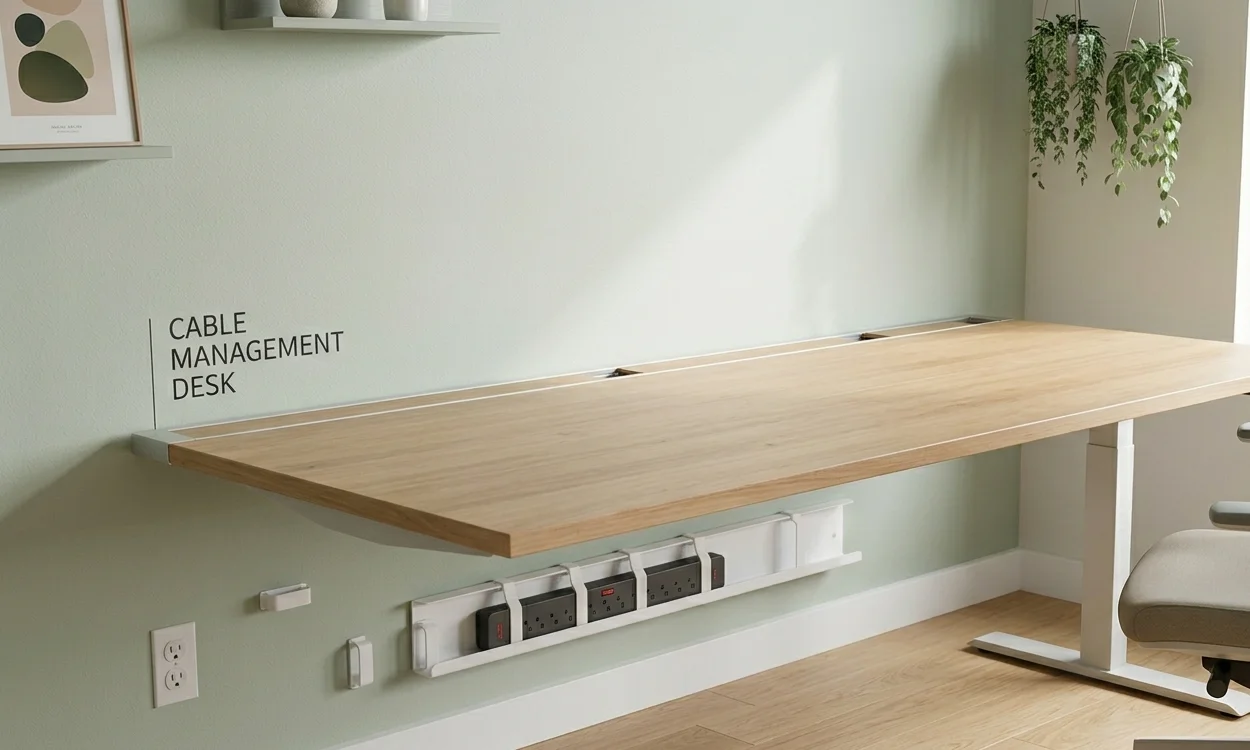
Every solid cable management desk plan begins with a clean slate. Wipe the top so you can see what is actually there. Remove paperwork, devices, chargers, and anything hiding the wires below or behind.
Unplug what you safely can. Spread each wire out and sort them into piles: charging leads, mains cords, screen cables, and data wires for docks, keyboards, or speakers.
Use this stage to toss outdated gear. Old wires, spare adapters, duplicate chargers, and power boards you no longer use add work later. Ask which cords stay plugged in all the time, which devices live on the desk daily, and which ones move around.
The answers shape the layout. For a dual-display setup, this guide on running a desk with a monitor and laptop pairs well with this one.
Pick the Right Accessories for a Clean Cable Management Desk
Once sorting is done, pick gear that suits your layout. Small home spots may only need clips plus a mounted power strip. Larger work areas gain from a full set with trays, sleeves, grommets, and reusable ties.
| Accessory | Best For |
|---|---|
| Cable clips | Single cords like phone chargers or laptop leads |
| Reusable Velcro ties | Bundling wires running the same direction |
| Under-desk tray | Hiding bulk and holding power strips |
| Cable sleeves | Wrapping grouped wires neatly |
| Desk grommets | Passing cords through the surface |
Clips keep single cords steady. Reusable ties bundle wires heading the same way and adjust easily over time. Trays tuck extra length, adapters, and power boards out of sight. Grommets help when cords must pass through the surface, like screen cables and lamp wires.
Pick gear that lets you tweak the layout later. This roundup of ideas for hiding home office cables shows how real makers use these accessories together.
Under-Desk Cable Management Desk Routing in Practice
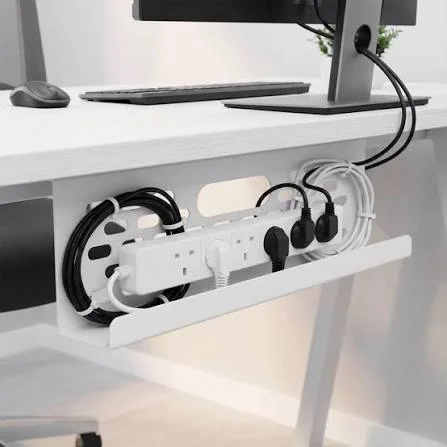
With your tools ready, focus below the surface. Most of the visual improvement happens here because loose cords and power boards drive the worst mess. The deeper walkthrough on how to hide cables under your desk covers extra tactics worth borrowing.
Pick a spot for the power strip first. Mount it underneath the desk or rest it inside a basket tray. Off the floor means less mess and easier cleanup.
Route the bulkiest, least-moved wires next: monitor power, dock connections, and display cords. Run them along the underside and toward the tray. Fasten them with gentle ties so they stay put without being crushed.
Add the smaller wires after that. Charging cords, speaker leads, and keyboard cables can loop around the main bundle. Allow a bit of give so devices can shift slightly. Plug everything back in and test before locking the final shape.
Cable Management Desk Setup for Height-Adjustable Workstations
A sit-stand frame adds extra planning. Wires need to follow the desk as it shifts up and down without snagging. Never pull cords tight. Leave room for the full range of travel.
Lift and lower the desk before fixing anything in place. Watch how each cord behaves. If a wire catches or stretches at a plug, fix it before bundling.
Group wires by where they end up. Screen cords can head into the under-desk tray, while one main set drops down toward the wall socket.
This reduces knots and smooths the motion. Looking at how others handle adjustable setups helps too, and this list of the best standing desks tested by real makers shows different cable approaches in action.
Cable Management Desk Mistakes Worth Skipping
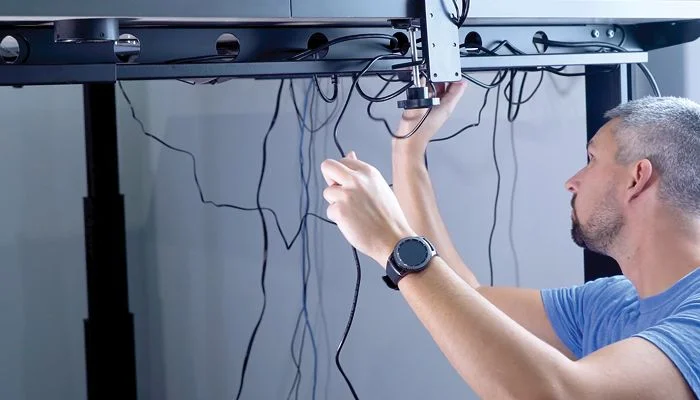
Rushed work tends to go wrong in similar ways. Keeping outdated wires fills tray space and muddles bundles. Cords far too long create extra loops everywhere. Bundling too tight makes swapping a single cord painful later.
Skip these missteps:
Sending every wire down one path. Pinching cords with overtight fasteners. Mixing daily chargers with fixed wires. Letting dust pile up near the tray. Skipping a function test before tying everything down.
Habits That Keep a Cable Management Desk Tidy
A tidy work area stays neat with quick check-ins. Look over the wiring whenever a new gadget joins the desk. Do a quick visual sweep every couple of weeks for loose ties, fallen clips, or dust.
Small touch-ups take minutes. Letting things slip costs hours later. Keep an eye on the setup whenever new devices arrive so clutter does not creep back.
Worn ties and loose clips left alone today often become a bigger mess in a few weeks. For a working example, this IKEA desk setup with an Embody chair shows a clean cable approach in practice.
FAQs
How do I start a cable management desk setup from scratch?
Clear the desk, unplug everything, sort cords by function, and toss what you do not use. Then map where each wire needs to run. A clean baseline makes the rest of the work faster.
What is the best cable management desk accessory for renters?
Adhesive clips and reusable Velcro ties cause no surface damage. Pair them with a clamp-on under-desk tray. None of these require drilling, so they suit shared or rental spaces well.
How often should I redo my cable management desk routing?
Run a full review once or twice a year. Quick visual checks every two weeks catch loose ties and fallen clips early. Most setups need a proper redo only after major hardware changes.
Do standing desks need a different cable management desk approach?
Yes. Wires must follow the desk through its full height range without stretching. Use flexible routing channels or magnetic clips, leave slack at connectors, and test the motion before fastening the bundle.
Can I build a clean cable management desk without buying anything?
To a point. Existing twist ties, repurposed cardboard tubes, and a spare basket can hide cords short term. Long-term tidiness usually needs a few proper clips, a tray, and a mounted power strip.
