

A browser game loads, but voice chat won’t connect. Another site asks for your location before opening a feature.
Sometimes the permission box appears while you’re halfway through setting up a session, making **Allow** feel like the quickest way to move on.
It helps to know what the site is asking for. Location, microphone, camera and notification permissions serve different purposes, and they don’t all need to stay enabled.

What a Site Can See Before You Click Allow?
A website can see the IP address used to connect to it. That may suggest your general area, though it can be inaccurate even at city level. Browsers also share certain technical details, including language preferences and information used to display a page correctly.
Granting location permission can give a site a more accurate estimate, depending on the device and its settings. Camera and microphone requests are more straightforward: the site wants to use that hardware for a particular feature.
Read the prompt rather than accepting it out of habit. A game that only needs keyboard input has little reason to request your microphone.
Why Location Works Differently Across Devices?
A phone can use several sources to estimate its position. A desktop computer, especially one connected by Ethernet, may have less precise location information available. That helps explain why the same site can recognise your location on one device and struggle on another.
Google’s May 2026 explanation of Chrome’s approximate location controls describes an Android option for sharing a broader area rather than a precise position. That may suit a site serving local content. Some services, however, need a more exact check.
Why a Promotion Page Can Still Be Restricted?
Location checks are especially important for regulated online gaming because access to real-money play depends on where a user is physically located.
PennLive’s overview of a betrivers casino promo code, for example, explains which states the casino operates in and how welcome-offer terms vary by location. Those eligibility requirements are separate from the permissions a user grants to their browser.
Regulated gaming services may use additional checks beyond the browser’s usual location prompt. They can also require account verification.
Granting permission won’t override regional rules, and a failed location check isn’t something to solve by installing a random extension or changing settings until a website accepts them.
Check the site’s own eligibility information and troubleshooting instructions first. They’re more useful than treating every location error as a browser fault.
Microphones and Cameras Have Their Own Settings
Browser voice chat needs microphone access, while video chat or camera-controlled games may request a webcam. Those permissions belong to the website. A microphone working in Discord or streaming software doesn’t automatically mean a browser tab can use it.
The same applies to system-level privacy settings. Windows and macOS can prevent an app from accessing a device even after you choose **Allow** in the browser.
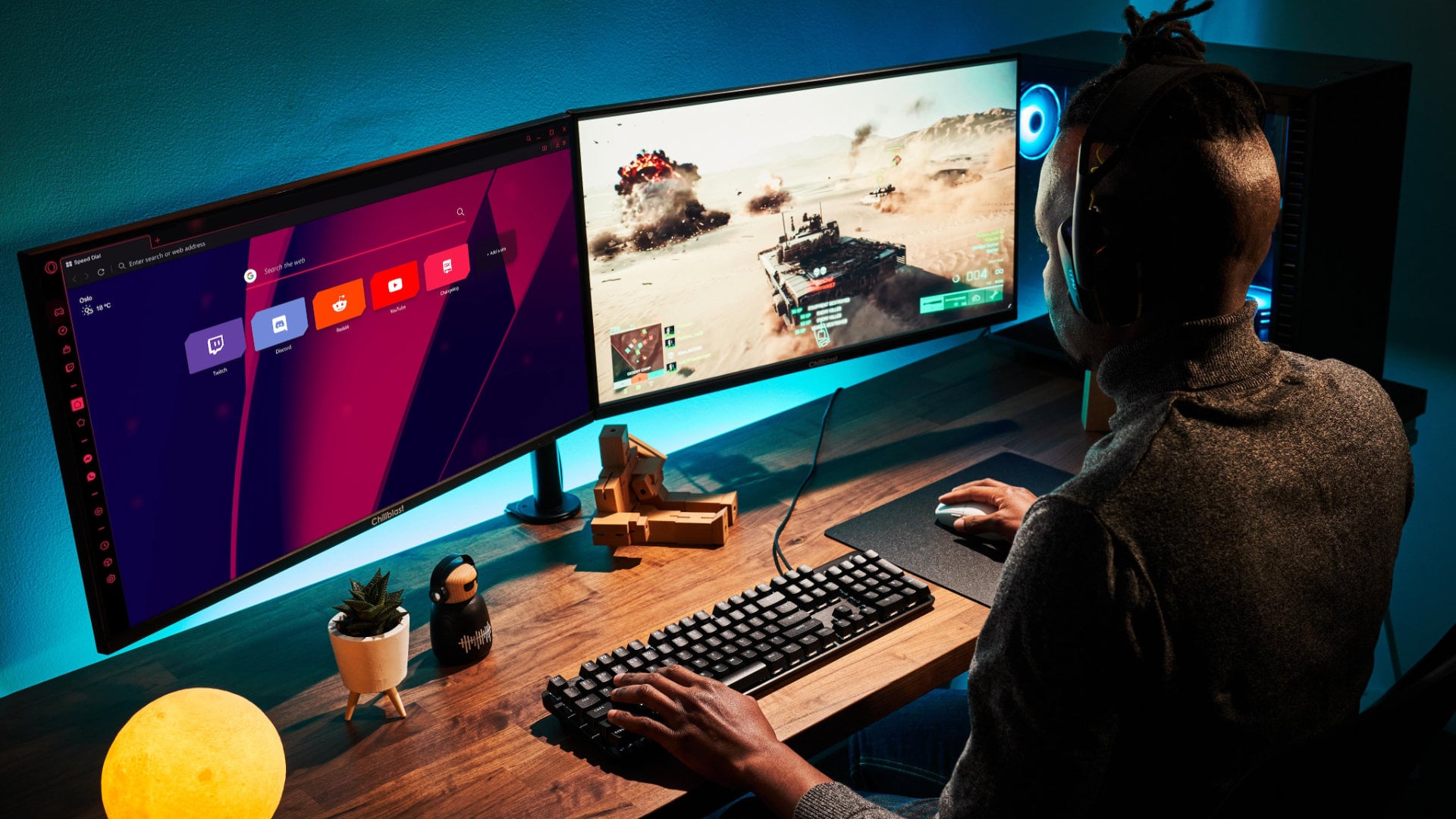
A typical streamer desk setup may have broadcasting software, a chat service and a browser open together.
When the sound disappears, check which program has access to the microphone before unplugging equipment or reinstalling drivers.
Notification access is easier to overlook. An invitation alert might be useful during a gaming session, but a site can continue sending messages afterwards. Removing notification permission won’t stop a game from loading.
Check the Blocked Setting First
If something stops working, try a few checks before resetting your browser:
1. Identify the feature. Is the problem with voice chat, a webcam, location or notifications?
2. Open the site’s permissions. In most desktop browsers, they’re available near the address bar. Look for a setting you previously blocked.
3. Check device settings. The operating system may have its own switch for camera, microphone or location access.
4. Reload and test again. Change one setting at a time so you can tell what fixed the issue.
Keep Access Tied to What You’re Using
If you need the microphone for a team call, enable it and review the setting when you’re done. The same goes for location and camera access.
Keeping those permissions tied to the features you actually use makes the next unexpected pop-up a lot easier to handle.
