

File management on Mac usually gets messy in a predictable way. Client assets pile up in Downloads, working copies drift into project folders, a ZIP gets built for delivery, and the package has to reach a cloud account or a client’s server.
Finder handles much of this well: folders, tags and search cover basic organization. It slows down when you shuttle files between the same two places all day, or when one job needs an archive tool, a browser tab and an FTP client.
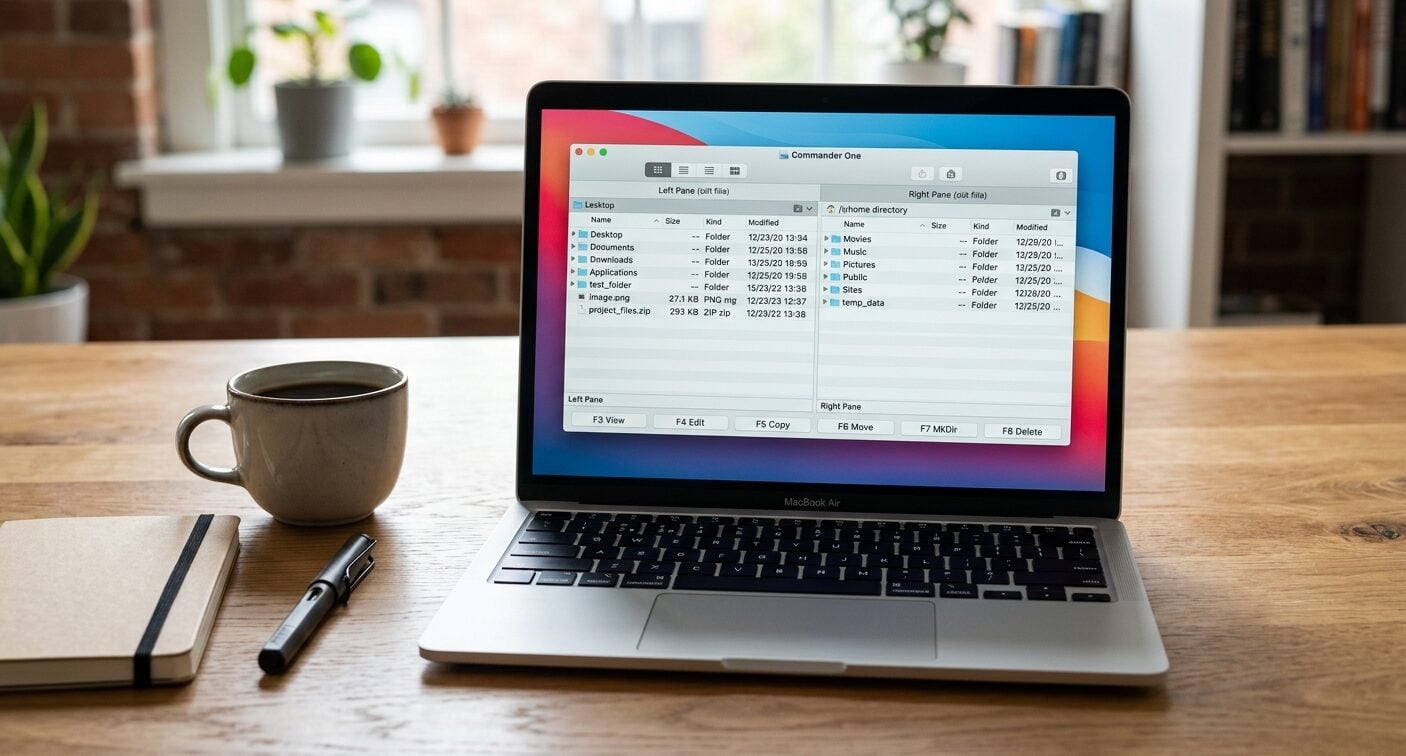
A dual-pane file manager such as Commander One puts those locations side by side. Here’s how that works on a real project, and when Finder is enough.
What Finder already does—and when you may need another file manager?
Finder does more than it gets credit for. It sorts by name, date or kind, labels files with color tags, opens locations in tabs or separate windows, previews almost anything with Quick Look and searches from any window.
Control-click a selection, choose Compress, and you have a ZIP. It also handles iCloud Drive and connects to SMB, WebDAV and FTP servers via Go > Connect to Server, though Apple notes that FTP access there is read-only.
For organizing files on Mac, that’s often enough. One folder per client, with subfolders for incoming, working and delivered files, goes a long way.
The friction is situational: moving batches between the same two folders all day, receiving archives in several formats, or uploading to a cloud account and an SFTP server in one afternoon, each through a different app. That’s when a second file manager pays off.
How Commander One handles everyday file management on Mac?
The Commander One manager keeps source and destination folders visible side by side. Each pane has its own location, view and tabs, so you can dig into a subfolder on the left without losing your place on the right. On first launch it asks for Full Disk Access, then lets you activate PRO or continue in Free Mode.
A basic local transfer:
- Open Downloads in the left pane and your client folder, say Clients/Harbor Coffee/Working, in the right.
- Select the files you need. The selection info line near the bottom shows the item count and total size.
- Check unclear files with the Quick Look toolbar button, or press F3 for the built-in viewer.
- Press F5 (or choose File > Copy), confirm the destination and click OK. To move instead, press F6 or click Move in the button row at the bottom.
- For a big batch, click Queue in the dialog (or press F2). It runs in the background, and the Operations Queue toolbar button tracks it.
Copy leaves the originals in Downloads. Move takes them out and files them in the destination.
To rename a single file as it lands, type a slash and the new name in the copy dialog’s path field. Hotkeys can be remapped in Preferences, which helps on Mac keyboards where the F-keys may need Fn.
Working with ZIP, 7z, TAR and RAR archives
Archives fit the same routine. Select the finished files and choose Compress selected file(s) from the context menu, and the ZIP appears in the same pane.
To send it straight to another folder, open that folder in the opposite pane and use the Archive toolbar button, where you also pick the format and compression settings.
Incoming archives open like folders. Select one and press Enter to browse it, then copy out only what you need, or right-click and choose Extract archive to unpack everything.
| Format | Supported actions | Edition |
| ZIP | Create, extract, edit contents | Free |
| 7z, TGZ (tar.gz), TBZ, TXZ | Create, extract, edit contents | PRO |
| Plain TAR, GZ, BZ2 | Extract, edit contents (no creation) | PRO |
| RAR, ISO | Browse, search, extract (read-only) | PRO |
So RAR can be unpacked but not created, and ZIP is the only format fully available without PRO.
Moving files between a Mac and cloud storage
With PRO active, a cloud account becomes a location you can open in a pane. Open Connections Manager from the toolbar, from Window > Connections Manager or with Command-F, pick a service and sign in.
OneDrive and Google Drive use a short wizard; Dropbox opens its sign-in page in your browser. Access follows that account’s permissions, so Commander One can’t do anything your account isn’t allowed to.
Then it’s two folders again: project folder on the left, OneDrive on the right. F5 from left to right uploads; from right to left it downloads.
This is file management, not sync. An uploaded file is a copy, so re-upload after local edits. Amazon S3 buckets connect the same way, with an access key ID and secret access key.
Transferring files to remote servers with SFTP, FTP or WebDAV
Servers use the same Connections Manager. Choose a connection method, name it, enter the address, port, login and remote path, then click Connect. The method matters:
- SFTP runs over SSH and encrypts both your login and the files (port 22 by default).
- FTP is plain and unencrypted. Use it only if the server offers nothing else.
- FTP with TLS/SSL (FTPES) and FTP with Implicit SSL (FTPS) add encryption to FTP, on ports 21 and 990.
- WebDAV is an HTTP extension common on web hosts and some network storage.
Say a client gave you SFTP access to an upload folder. Once connected, it opens in the right pane; put your delivery folder on the left, select the package and press F5.
Commander One is a client here. It transfers files, but it doesn’t host them, back up your Mac or keep the server in sync.
A practical project workflow from Downloads to cloud and server
You’ve just wrapped a brand refresh for a café client, Harbor Coffee. The photographer’s images, final logo files and a pile of drafts are sitting in Downloads.
- Clear out Downloads. Left pane: Downloads. Right pane: Clients/Harbor Coffee/Working, added to Favorites from the toolbar since you’ll be back often. Scattered files? Run Search file with a name pattern and click Feed to Active Panel to list them together. Select the project files, preview anything unclear and press F6 to move them. Unneeded drafts go to the Trash with F8.
- Pick the approved set. Open a second right-pane tab at Clients/Harbor Coffee/Delivery. Switch the left pane to Working, select the approved finals and press F5, so the working copies stay put.
- Build the package. Point the left pane at Delivery, select the finals and choose Compress selected file(s). Rename the archive to something the client will recognize, like HarborCoffee-Brand-Final.zip. Everything so far works in Free Mode.
- Upload to OneDrive (PRO). Keep Delivery on the left. Connect OneDrive in the right pane, open the shared client folder and copy the ZIP across with F5.
- Send a copy to the client’s server (PRO). Open another right-pane tab, connect to the client’s SFTP server, go to their upload folder and press F5 again. For a large file, watch the Operations Queue.
The end state: Downloads is clean, the project sits under one client folder, a single ZIP waits in Delivery, and the same package is in OneDrive and on the client’s server. The left pane barely moved, while the right pane went from local folder to cloud account to remote server.
Nothing updates on its own. For revisions, rebuild the ZIP and copy it to both places again.
Commander One vs Finder: which should you use?
Commander One runs alongside Finder rather than replacing it as the macOS shell, and a file moved in one shows up in the other.
Finder is enough when your work is mostly local and occasional: browsing, tagging, Quick Look, iCloud Drive and the odd ZIP.
Commander One fits better if you:
- move files between the same two locations many times a day
- regularly handle 7z, TAR or RAR archives
- treat cloud accounts and SFTP servers as part of everyday file work
- prefer keyboard-driven copy and move with the destination in view
A simple test: if one Finder window usually does the job, stay put. If you keep juggling two windows, an archive utility and an FTP client, give a dual-pane file manager a week of real work.
What is available for free, and what requires PRO?
Free Mode covers local work: two panes with tabs, copy, move, rename and delete, the operations queue, search, the hidden-files toggle and full ZIP support. PRO adds cloud connections, FTP, SFTP, FTPS and WebDAV, the other archive formats above, themes and a built-in terminal.
You can get Commander One from the developer’s website or on the Mac App Store, and the editions differ.
Apple’s sandbox stops the App Store version from running the terminal emulator, mounting iOS devices, quitting processes, restarting as root, ejecting local drives or overriding the system F1–F12 setting.
With PRO enabled, either edition handles the workflow above; for those system-level tools, choose the direct download.
Bottom line
Finder is still a good default for file management on Mac, and nothing here asks you to give it up. Commander One earns its place when files move between several locations: client folders, archives in more than one format, cloud accounts and the occasional SFTP server.
Two panes, one set of copy and move commands and a single connection list cut out a lot of app switching. Start in Free Mode for local work and ZIP files, and upgrade only if cloud, server or wider archive access becomes routine.
