




Gimkit Live has a built-in accessibility feature that reads questions and answer choices aloud to students as they play. It’s called Read to Me. By default, it’s off — each student turns it on individually during a game. The process takes under a minute and requires no teacher setup. Here’s how it works.
How to Enable Read to Me in Gimkit
Students activate Read to Me on their own device during an active Gimkit Live session. Teachers don’t need to configure anything beforehand. Before your next session, it helps to walk students through these steps once so they can do it independently going forward. You may also want to review how Gimkit assignments work for asynchronous practice outside of live games.
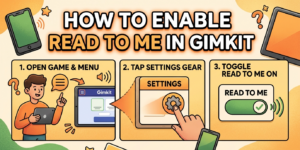
- Open the game and look at the top-right corner of the screen. Tap the menu icon there.
- A panel will open. Find the settings gear at the bottom-left of that panel and tap it.
- A toggle for Read to Me will appear. Switch it on. Audio will begin with the next question.
Once active, the game reads each question and all answer choices out loud. The text highlights on screen as each part plays, so students can follow visually at the same time.
What Does Read to Me Do in Gimkit Live?
Read to Me is limited to the question-and-answer phase. It reads the question text first, then each answer option in sequence. The highlighted text tracking means students who process information better visually can still follow along even while listening.
The feature doesn’t extend to the shop, the answer review screen, or any other part of the game. Its function is strictly reading questions and choices — nothing else.
How to Replay a Question with Gimkit’s Read to Me
Read to Me plays each question once automatically. If a student misses it or needs to hear it again, they can tap the Read to Me icon in the top-left corner of the screen. This replays the current question on demand, as many times as needed.
Quick Reference: Where to Find Each Setting
| Action | Where to Find It |
|---|---|
| Open the menu | Top-right corner of the game screen |
| Access settings | Bottom-left of the menu panel (gear icon) |
| Toggle Read to Me on or off | Inside the settings panel |
| Replay a question | Read to Me icon, top-left corner of the screen |
Does Read to Me in Gimkit Carry Over Between Games?
No. Students need to re-enable it at the start of every new game. There’s no way to save the preference across sessions. For classes that run back-to-back rounds, remind students to turn it on each time. If your class uses fast-paced modes regularly, Gimkit Snowbrawl is one of the quicker modes to restart between rounds.
If you’re setting up Gimkit classes for the first time, it’s worth mentioning Read to Me to students during onboarding so they know it exists before they need it.
Teachers who run frequent live sessions may also find it useful to explore how Gimkit hosting works to set up games faster, and to check out Gimkit Pro for access to additional game modes and features.
FAQs
How do you enable Read to Me in Gimkit?
During a live game, tap the menu icon in the top-right corner, then tap the settings gear at the bottom-left of the panel that opens. Toggle Read to Me on. It activates immediately for the current session.
Does Read to Me work in all Gimkit game modes?
It works during the question-answering phase of Gimkit Live. It doesn’t read shop screens, answer reviews, or other game elements. Availability across every game mode may vary.
Can teachers turn on Read to Me for all students at once?
No. Each student must enable it on their own device. Teachers cannot toggle it on globally from the host screen. It’s a per-student, per-session setting.
What language does Read to Me use?
It reads in the language configured on the student’s device. It doesn’t switch based on quiz content. For foreign language questions in a specific language, use Gimkit’s separate audio question feature instead.
How do students replay a question with Read to Me?
Tap the Read to Me icon in the top-left corner of the game screen. This replays the current question and all answer choices on demand, as many times as the student needs.

