





Gimkit packet loss occurs when data packets fail to arrive between the game server and a player’s device. Coin balances freeze mid-game, upgrades stop activating, and power-ups become unresponsive. The cause is almost always network-related, not a Gimkit bug. Here is how to identify the problem, what triggers it, and which fixes work.
How to Spot Gimkit Packet Loss in a Live Session
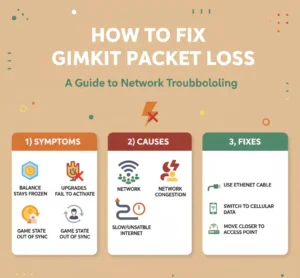
Several symptoms appear when packets drop in transit. Players often mistake them for software errors, but they all point to data delivery failures. These problems show up more frequently in Gimkit 2D game modes, where real-time movement requires constant server synchronization.
| Symptom | What Happens |
|---|---|
| Balance stays frozen | Coins earned during play never appear on screen |
| Upgrades fail to activate | Purchased items show no visible effect |
| Power-ups unresponsive | Tapping a power-up produces no result |
| Game state out of sync | Player position or score appears incorrect to others |
What Causes Gimkit Packet Loss?
Every Gimkit round sends small data packets carrying player earnings, upgrade states, and recent inputs. When any of these fail to arrive within the required time window, the game cannot reflect changes in real time.
Slow or Unstable Internet
Gimkit transfers far more data per second than a standard webpage. A weak or inconsistent connection cannot keep pace, and packets that miss the delivery window get discarded.
Network Congestion in Classrooms
Classrooms often run 20–30 devices on a single access point. When bandwidth splits that many ways, the router starts dropping packets. Schools dealing with broader access problems should review troubleshooting Gimkit game servers for network-level fixes. Using Gimkit assignments asynchronously can also reduce the number of simultaneous connections during peak class time.
How to Fix Gimkit Packet Loss
Stabilizing each device’s connection is the most direct approach. Wired Ethernet is the best option, though classrooms rarely have the infrastructure for it.
| Fix | Why It Helps |
|---|---|
| Use an Ethernet cable | Provides steady, uninterrupted data transfer with no wireless interference |
| Reduce devices on the network | Less bandwidth competition means fewer dropped packets |
| Switch some devices to cellular data | Offloads traffic from the school Wi-Fi entirely |
| Switch to the 5 GHz Wi-Fi band | Less crowded than 2.4 GHz in most school environments |
| Move closer to the access point | Stronger signal reduces the rate of dropped packets |
Teachers who plan to host a Gimkit session with 20 or more students should run a network stability check before the match starts.
Quick Tips to Prevent Gimkit Packet Loss Before It Starts
These steps take less than two minutes and cut the chances of mid-session packet loss significantly.
- Move all devices within clear line-of-sight of the wireless access point
- Pause any background downloads or streaming apps on every device
- Disconnect gadgets that are not part of the session from the local network
- Restart the router a few minutes before the session begins
How to Test Whether Your Network Is Causing Gimkit Packet Loss
Run a speed test at Speedtest.net and look for ping above 100 ms, unstable speeds, or sudden drops. When multiple players report the same glitch simultaneously, the local network is almost always the source.
School firewalls sometimes block Gimkit’s WebSocket connections or interrupt SSL traffic. Ask your IT team to whitelist all subdomains under .gimkitconnect.com. Administrators using Google Workspace can also mark Gimkit as trusted in Google Workspace to prevent access blocks from interfering with sessions.
When Switching Networks Fixes Gimkit Packet Loss Faster
If the current connection keeps failing after the steps above, switching networks is often the fastest resolution. A mobile hotspot or the 5 GHz Wi-Fi band handles Gimkit’s data requirements more reliably than a congested 2.4 GHz classroom network.
Students on phones can switch to cellular data, which reduces the number of devices competing for the same access point. If display issues appear after fixing connectivity, check how to enable WebGL in Gimkit 2D mode to rule out rendering problems. For a full feature overview once the connection is stable, Gimkit Pro includes tools designed for larger, more reliable classroom setups.
FAQs
What is Gimkit packet loss?
Gimkit packet loss is when data units sent between the game server and a player’s device fail to arrive. This causes frozen balances, inactive upgrades, and unresponsive power-ups during a live session.
Does Gimkit packet loss mean the Gimkit servers are down?
Usually not. Most packet loss comes from the local network — weak Wi-Fi, too many connected devices, or firewall restrictions. Check Gimkit’s status page at gimkit.crisp.watch to confirm whether servers are operational.
Can a wired connection fix Gimkit packet loss?
Yes. An Ethernet cable provides a direct, stable link to the router. It removes wireless interference and reduces dropped packets to near zero, making it the most effective single fix available.
Why does Gimkit lag on school Wi-Fi specifically?
School networks serve dozens of devices through one access point. The congestion forces the router to drop packets, which causes lag and missing game updates. Reducing active connections before a session helps.
How do I test if my network is behind the Gimkit packet loss?
Run a speed test at Speedtest.net and look for ping above 100 ms, fluctuating speeds, or drops. If multiple players share the same issues at the same time, the local network is the cause.


Francesco is a maker, engineer, and 3D printing enthusiast passionate about building tools and spaces that inspire creativity. With a background in software development and hands-on hardware projects, he explores the intersection of digital fabrication, productivity, and modern workspaces. When he’s not designing or experimenting, Francesco shares insights to help others create smarter, more efficient environments for work and making.